
Where: Settings → Discord Companion → Setup guides. Start with Discord beginner guide; use Set up Discord to configure the bot.
How to use it
- Use your normal Discord account to create a private server and one normal voice channel, such as Race Engineer. A dedicated server keeps the bot away from unrelated community activity.
- Open the official Discord Developer Portal at https://discord.com/developers/applications. Create an application and its bot. LapMind does not create the bot or server for you.
- In Installation, enable Guild Install and use the installation link with the bot scope to add it to your private server. Grant View Channel, Connect and Speak in the selected voice channel. Do not grant Administrator or moderation permissions.
- Generate/reset the bot token in Bot settings. Treat it as a password. Paste it only into LapMind → Set up Discord → Validate token.
- LapMind stores the token encrypted on this device, clears the field, then checks it while loading available servers. Select the server/channel by name; a sole available choice can be selected automatically.
- Choose Connect Discord and wait for Connected. Then join the same channel using your personal Discord account on another device or the console, and use Test voice.
Options and defaults
| Control | Fresh default | Values / action | Condition or meaning |
|---|---|---|---|
| Discord beginner guide | Manual action | Open native guide | First-time bot/channel setup |
| PS5 / PS5 Pro Discord guide | Manual action | Open native guide | Console listening steps |
| Set up Discord / Change destination | Manual action | Configure or change target | Cancel retains the previous saved target |
| Validate token | Manual action | Validate and load servers | Encrypted storage precedes server-list validation |
| Server / Voice channel | No initial destination | Available names | Bot membership/permissions required |
| Connect Discord | Manual action | Join saved/selected target | Does not join your personal account |
Operating principle and expected output
The bot and your personal account are separate channel participants. LapMind resolves server/channel IDs itself. It never asks for a personal user token, Discord/PSN password, Client Secret, Public Key or Application ID. The core remains usable without Discord.
When output is absent or limited
Discord needs internet and the server/channel must be accessible to the bot. Connected is software connection state, not proof of audible output. No token or real account data appears in the documentation images.
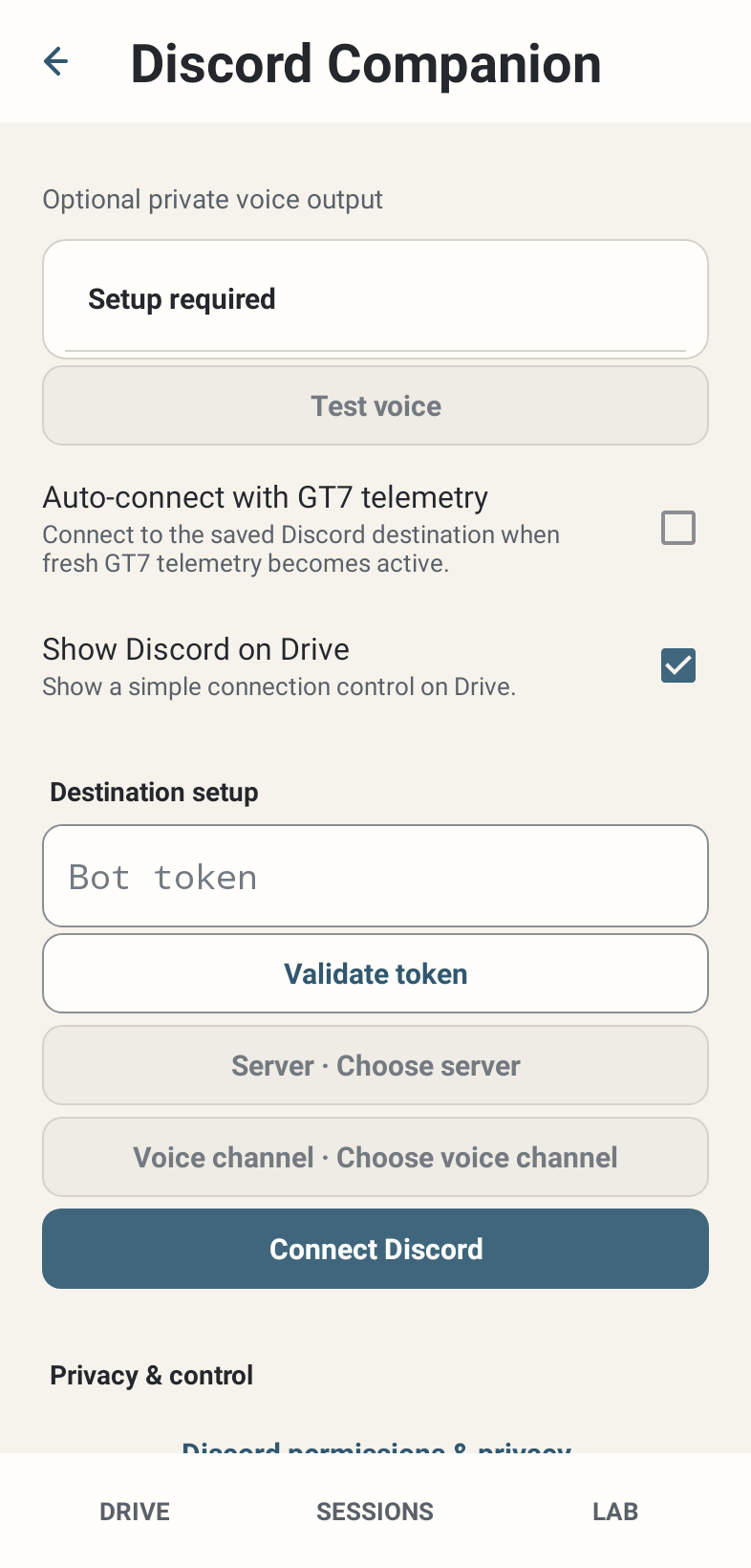
Open the official Discord Developer Portal